
How to write LaTeX in VSCode (+ AI model assistance)
Writing in LaTeX locally efficiently has saved me a lot of time.
90% of the documents I write, for better or worse, are in LaTeX. For shared projects where revisions and comments are needed, my main tool is Overleaf. However, for projects where I'm the only editor, I've found a pretty comfortable workflow in VSCode. First, because it's my main code editor; second, because I don't want to download another application just for writing; and third, because it allows the use of language models for free (unlike Overleaf).
What you need to install
We're talking about VSCode, so I assume that if you're reading this, you already have it installed. Now, what you need to use LaTeX locally is a compiler. I use macOS, so the one I use is MacTeX. You can download it here. If you use Windows, you can install MikTeX or TeX Live.
Once you have the compiler, go to VSCode and install a couple of extensions. The first is LaTeX Workshop, which will allow you to use the compiler and have syntax highlighting, autocomplete, etc. The second is the GitHub Copilot extension (or your favorite language model extension). I use Copilot because with an educational account, the PRO version is free.
Now go to the top menu and click View → Command Palette and search for Preferences: Open User Settings (JSON). Inside, add the following lines:
"latex-workshop.latex.tools": [
  {
    "name": "latexmk",
    "command": "latexmk",
    "args": ["-synctex=1", "-interaction=nonstopmode", "-file-line-error", "-pdf", "-outdir=%OUTDIR%", "%DOC%"],
    "env": {}
  },
  {
    "name": "xelatex",
    "command": "xelatex",
    "args": ["-synctex=1", "-interaction=nonstopmode", "-file-line-error", "%DOC%"],
    "env": {}
  },
  {
    "name": "pdflatex",
    "command": "pdflatex",
    "args": ["-synctex=1", "-interaction=nonstopmode", "-file-line-error", "%DOC%"],
    "env": {}
  },
  {
    "name": "bibtex",
    "command": "bibtex",
    "args": ["%DOCFILE%"],
    "env": {}
  }
]
If your configuration file is not empty, make sure to add a comma at the end of the last line before pasting. Now do the same with the next block — add a comma after the last ] and paste:
"latex-workshop.latex.recipes": [
  { "name": "pdfLaTeX",   "tools": ["pdflatex"] },
  { "name": "latexmk 🔃", "tools": ["latexmk"]  },
  { "name": "xelatex",    "tools": ["xelatex"]  },
  {
    "name": "pdflatex ➞ bibtex ➞ pdflatex×2",
    "tools": ["pdflatex", "bibtex", "pdflatex", "pdflatex"]
  },
  {
    "name": "xelatex ➞ bibtex ➞ xelatex×2",
    "tools": ["xelatex", "bibtex", "xelatex", "xelatex"]
  }
]
How to use it?
Open in VSCode the folder where you're going to work. Once inside, create a new file with the .tex extension (e.g. document.tex) and start writing. To compile, press Cmd + Alt + B, or click the green play icon in the top-right bar that appears after installing LaTeX Workshop. This generates the PDF in the same folder as your .tex file.
How to use language models?
When installing GitHub Copilot, a chat icon appears in the top bar. Click it and a sidebar opens where you can type your prompts. Here's an example of how it looks:
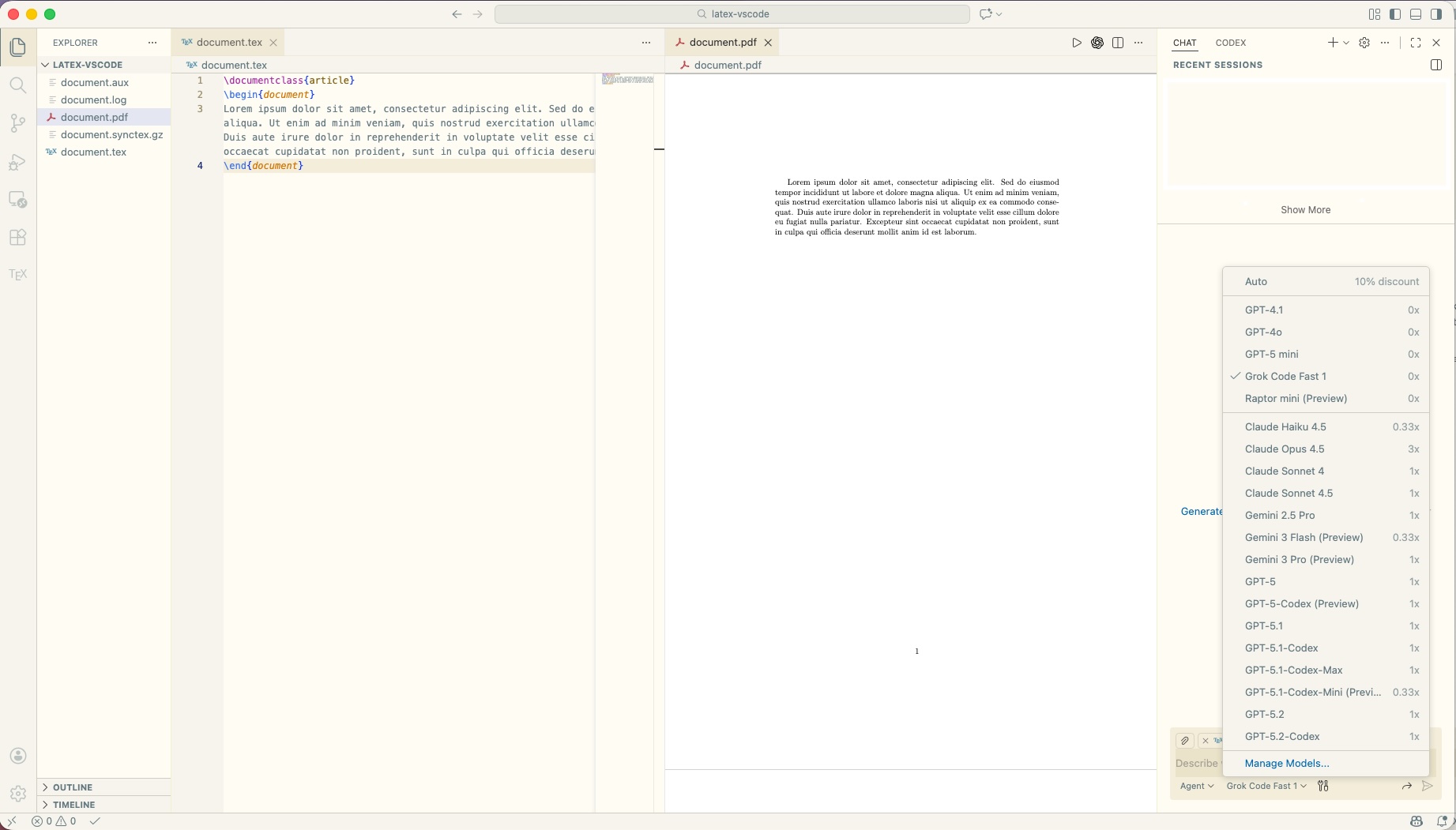
If you click on the model name in the chat box, a dropdown appears where you can select the model and the usage mode:
- Agent — can read, edit, create, and delete files. Ideal for document structures, fixing compilation errors, etc.
- Ask — read-only access to your files. Good for reviewing sections or the whole document.
- Edit — can read and edit. Ideal for rewriting parts, improving wording, etc.
- Plan — analyzes your request, reads project files, and returns an action plan you can execute yourself or hand off to Agent mode.
Models shown as 0x are free and unlimited. Models shown as 0.33x, 1x, etc. consume your monthly premium quota — for example, Claude Haiku 4.5 costs 0.33 per request. If you have a paid account, free-tier models are unlimited but premium models still count against your quota. I rarely hit the limit, to be honest.
And that's it! With this setup you can write LaTeX locally, comfortably, with language model assistance. Hope it helps :)